

Microsoft Teams guide
- External attendees
- Joining an MS Teams meeting as an external participant
- In-call functions on Teams
External attendees
The trust uses MS Teams as our audio and video conferencing tool of choice. Through MS Teams external attendees are able join our internal meetings. External attendees do not need to have an Office 365 licence, or the MS Teams application installed on their device(s). They can simply join and participate with comprehensive in-meeting functionality through using the web browser version of MS Teams.
This guide will explain how you as an external colleague can join our Teams’ meeting.
Joining an MS Teams meeting as an external participant
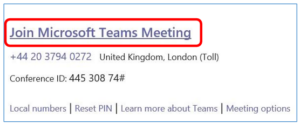
- To join a meeting organised by NHS England and NHS Improvement, all you have to do is click on the Join Microsoft Teams Meeting link within the meeting invite.
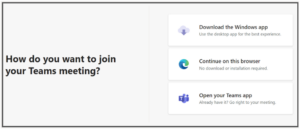
- The pre-joining screen will appear. Some of you may already have the MS Teams app installed. If this is the case, select open your Teams app. In all other instances, select continue on this browser. We recommend using Google Chrome as your web browser.
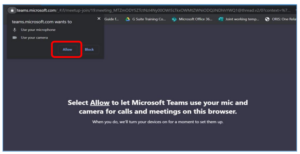
- Once you have joined via your web browser, you will be asked to allow Teams to use your microphone and camera so you can fully interact with the meeting participants. Click “Allow”.
- You will now see the Pre-meeting options screen. You will be asked to enter your name. Please do enter your name here to ensure that hosts are aware of who has joined the meeting.
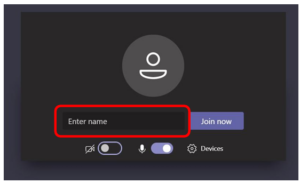
- Here you can switch on your camera so you can be seen by your fellow meeting participants, blur your background when using the camera, mute your microphone before joining the meeting or adjust your microphone settings by clicking the gear symbol.
In the gear symbol, you can select whether the audio will come through your laptop, or a headset that you have connected.
When ready, select Join now.
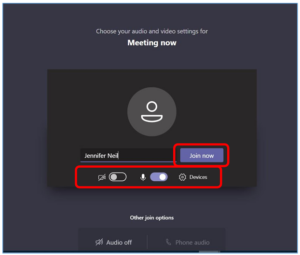
- If the meeting has been set up to include the lobby function, you will need to wait until you are let into the meeting.
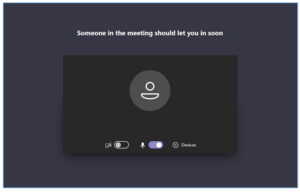
- The meeting organiser at the host organisation will receive a notification that you are waiting in the lobby. The organiser now has the choice of viewing all those in the lobby by selecting view lobby or let the waiting attendee join the meeting by selecting admit.
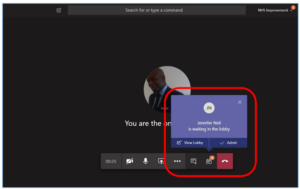
- Once the meeting organiser has selected admit, you will join the meeting.
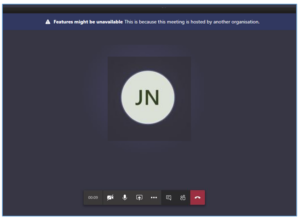
In-call functions on Teams
- These in-call functions are displayed as a toolbar in the middle of your screen.

- The call-time function keeps you informed of how long your meeting or call is taking.

- Click this to toggle your camera on or off, ideal for video conferencing.

- Toggle your microphone on or off. Ideal for preventing feedback, echo and background noise from interrupting the meeting. We recommend you keep your microphone muted unless you are speaking.

- Click this to share your screen with the other participants. This is a great tool for allowing groups to view content together.

- Selecting the More Options button provides further in call functionality.

- Click to view and send instant messages to the other meeting participants. This is a great way to participate.

- Click to view who has joined the meeting.

- Click here to end your call or meeting.

Credit: This guide has been adopted using the NHS England and NHS Improvement MS Teams guidance.